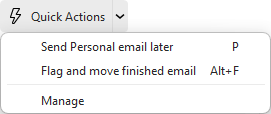
The Quick Action feature is designed to help you finish more work in less clicks. You can specify an order of actions with steps that should be performed when you use your select keyboard shortcut or select the Quick Action from the main toolbar.
This will help you automate your common tasks, when it comes to either quickly starting a new email (starting it with specific template, recipients, signature, etc.) and sending it or managing incoming messages (flagging, copying, moving, adding a tag, etc.).
In the drop-down menu from the main toolbar click Manage to add or edit existing Quick Actions:
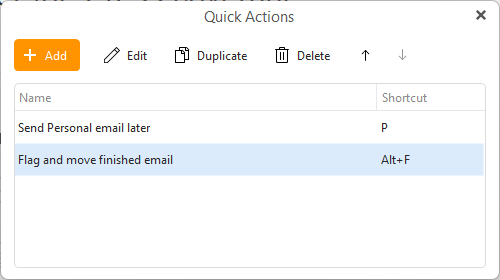
Toolbar in this window:
Clicking Add in the Quick Actions window will open this creation window:

Toolbar:
Under these buttons you will need to Name your action so you can easily see it in the list and you can assign a shortcut - including single-key shortcuts or any other you prefer (unless the same key combination is already used in menu > Settings > General > Shortcuts).
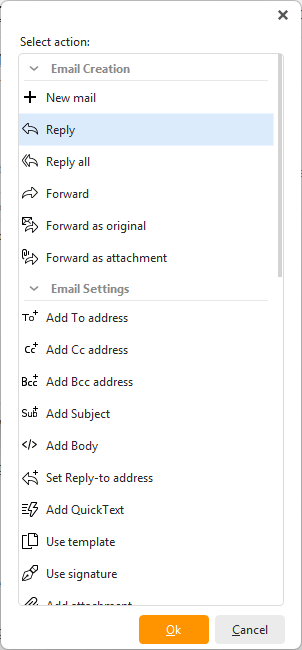
Click +Add to add steps to your Quick Action, there is few different options:
Once you are finished with your action make sure to click Save & Close to finish it and start using it in your mail management!